Showing posts with label interface. Show all posts

Friday, 29 November 2019

VU17: Tiering and enhancers update in December

More information has been released today by MindArk about the upcoming version update in December. In the upcoming update several changes and improvements will be made to the item tiering and enhancers systems to make it cheaper and easier to use.

MindArk plans to lower the cost of using these systems to help increase the usage of enhancers, this is to help stimulate an increase in crafting activity by increasing the demand for enhancers. It has also been stated that further updates will also contain further improvements to these systems.

One of the major improvements will be that 100% of the ingredients will be return in trade terminal value as shrapnel. A persons tier level will not longer be involved in salvaging ingredients when upgrading a tier of an item.

100% of the trade terminal value of enhancers will also be returned in the form of shrapnel when an enhancer breaks and enhancers inserted into limited items will now break much less often.

With the changes to the item tiering process, the "Tier Upgrader" profession will no longer have any purpose, and will be removed completely. Any remaining skill points will have its value converted to a corresponding "Tier Upgrading Skill Implant" and compensated at a markup of 20000% in early 2020.

In the meantime, anyone wishing to convert their existing "Tier Upgrading" skill points to PED can list "Tier Upgrading Skill Implants" on the auction and a MindArk Official avatar will buy any implants listed for 20000% markup or lower, once per week.

A few minor changes to the interface which will greatly improve the smoothness of the interactions will be the ability to attach and remove attachments and enhancers without unequipping the item first, and no longer needing to drag items from the inventory or storage to the tier upgrading window. Items from your inventory as well as items from an open storage terminal will automatically be used in the tier upgrading window. Items in vehicles or container storage will not be used.

Another minor improvement which improves the information the interface will provide to the user is the addition of a second decimal place to the tier level. This will provide more finer detailed information about the progress to the next tier level.


Tuesday, 24 September 2019

Codex Released and Shares Trading

Bestiary Codex Released

Anyone who keep track of Entropiazine will know that back in July MindArk announced that the current mission system will be replaced with a new mission system.

Today the citizens were handed a new Codex system today containing information on the creatures they have killed, along with a new ranking system based on contribution. The bestiary list in the codex will automatically be added when a person makes their first kill with the new system.


There will also be a period where both the new and old systems will be in place at once, during which kills on qualifying creatures will result in progress on both the old and new system.

The grace period between the two systems will extend approximately one year, if you complete the requirements for the old iron mission during the cross over period, you will receive the usual reward, but you will not be able to begin the next mission of the old system.

When the one year cross over period has elapsed, all missions from the old system will be disabled for all participants. Progress will no longer be possible for the missions, and uncompleted missions will not provide any rewards.


Crystal Palace Shares For Sale

In other news today, we also see the release of the ability to sell shares in the shares system. Right now people are buying and selling shares in the new system.

Back in May Crystal Palace Shares was released to the public, being the first land area to implement the share system.

500,000 shares are available shares equalling to 100% of the Crystal Palace's land area and was originally sold for 10 PED or $1.00 USD each. All the shares were sold in less than 3 days.

Currently the price of each share is around 17.50 PED, but we can not predict if the price will raise or fall. The revenue from the shares have an average of 0.01 PED each per week, payed every Monday.

The estate is be managed by the official avatar "MindArk CrystalPalace Manager". Energized Fertilizer necessary to maintain creature spawns in the biodomes will be acquired by "MindArk CrystalPalace Manager" at the normal auction at market prices.


Friday, 8 March 2019

Entropiazine: Guide Update

Entropiazine News Update
Entropiazine News Report

Keeping up to date:
Keeping up to date with the current control change has not been an easy task for any of us, especially in the last updates, where once again our default controls changed.
The guides on this site have been updated and I will continue to keep the guides up to date as we all go threw this process together.


Entropia Universe Release Notes:

Entropia Universe 16.0.3 Release Notes

Entropia Universe 16.0.1 Release Notes

Entropia Universe 16.0.0 Release Notes

Sunday, 3 March 2019

News: Catch up on 2019 (First Quarter)

Entropiazine News Update
Entropia Universe News Report

In this issue:
> Deep Token Project Dropped By MindArk
> Swedish Loot Box Laws
> Announcement Of Crystal Palace Deeds
> User Interface Update


Deep Token Project Dropped By MindArk


Earlier this year MindArk developed and promoted DeepToken, a type of crypto currency token offering with the ambition of raising funds to create an intellectual property and digital asset bank, as well as improving Entropia Universe.


With time it has become evident that the ambitious project of DeepToken will not be able to be fulfilled. Therefore, the MindArk Board of Directors has decided to suspend the project and refund all the investments made to MindArk related to DeepToken.


Swedish Loot Box Laws


On the first of January 2019 a new Swedish law which affects lootbox systems that is used in many computer, mobile, and console games will go into effect. MindArk’s legal representatives has advised them on this new law and therefore MindArk need's to take the necessary steps to comply with this new regulation.

The consequences of the new law will be that users located using Swedish IP will no longer be allowed to purchase Strongboxes or Strongbox keys in the Entropia Universe web shop from this date.

It will still be possible for anyone in Entropia Universe to find boxes within Entropia Universe, but users with Swedish IP will not be able to open them unless they have Strongbox Keys acquired prior to January 1, 2019.

Strongbox Keys acquired prior to January 1, 2019 will continue to function even for users in Sweden, but they will not be able to purchase new Strongbox Keys from this date.

If you do not reside in Sweden or use a Swedish IP Strongboxes and Strongbox Keys will continue to work like previously, this change only affect users in Sweden or with a Swedish IP.


Announcement Of Crystal Palace Deeds


A hardly mentioned announcement was made back in December by MindArk, that a possible  500,000 available shares equal to 100% of the Crystal Palace's land area and will be sold for 10 PED or $1.00 USD each.

The now 13 year old Crystal Palace consists of four different dome locations, featuring two unique creature to hunt. When the Crystal Palace was originally sold to the current private owner in 2009, it was one of many times a Guinness Book of Records title holder. Shareholders will get a proportional cut of the total loot collected across all four domes. in 2018, the Crystal Palace earned an approximate return on investment of 17% for its current owner.

Buzz Erik Lightyear the current owner of Crystal Palace has made a public statement on the matter,
"In the beginning of 2018 I had been thinking about the idea to sell Crystal Palace. It has been a great honor and it has been very exciting, fun and rewarding to have owned it all these years. But it was on my mind that perhaps I needed to move on from Crystal Palace, as owning such a large investment didn't make as much sense anymore for me due to real life issues."

Buzz continues to talk about his interaction with MindArk,
"I asked Mindark again about this issue and what can be done. After these discussions they suggested to me the idea to turn Crystal Palace into a Deed sale. I felt very optimistic about this new idea! A new evolution for Crystal Palace. It was not only a great solution to selling Crystal Palace as I had been thinking about all year... But it really felt like a win-win situation."

Buzz also shared his vision for the the future of Crystal Palace,
"This would give many players, hunters, and investors the opportunity to own a part of Crystal Palace! I love the idea of that. The future of Crystal Palace could be great. Having large amounts of people who invest in it would mean more would want it to be successful. This could bring new opportunities for events or other exciting things that could happen in the future. And all of these positive things would increase the revenue for all of the future deed holders."

Buzz even goes on to say what we can expect,
"Mindark would be taking care of the deeds, sale and everything they need to do in order to implement and make this a reality. They have valued Crystal Palace and they will share the sale revenue in order to accommodate this change and costs associated with such an endeavour. After the announcement many people have been asking me for more information about it. I hope MA will be able to give some more details for all those who had questions about it all in the near future."

User Interface Update


On the 19th of Feb, version 16 was one of the most major updates to Entropia Universe's user interface since version 10, the CryEngine update in 2009.

This update introduces a number changes and enhancements to the controls, the movement, the camera and the targeting systems. To anyone picking up the controls for the first time will quickly handle the new controls, but older player will find it a struggle.

One of the major improvement to the system is the abilit
y to quickly access the auto use tool, threw a mouse click or a single key press, with no need to toggle. The auto targeting, auto using tool and the auto move to targets have been highly improved and has been stream lined into one simple process.

Camera movement and manual WSAD movement with the camera is still something that needs a little more attention, MindArk in following updates addressed some of these concerns, adding more camera control in the options window.

Older players instantly notices a number of useful feature and control have also been removed from the action library, one of which is the ability to grab someone or something status/health bars. Auto use tool has now been replace with interact or use tool and vehicle up is now jump.

Overall the update has been received well in the community among the newer players, the older players are still adjusting with a mixed bag of opinions.

Two updates have been briskly released by MindArk with more updates to be expected soon speculated to be focused more around the camera controls and movement.


Monday, 25 February 2019

Guide: Edit Interface

This guide will show you how flexible the overall interface in Entropia is, here you will learn about the chat interface, heads up display, waypoints, keyboard controls, contacts list and a few other display related options.


Right Click

Holding right click will bring up a context menu with other options relating to the target. Vehicles, avatars and creatures have extra options which can be accessed this way. If you right click your health bar, you access options relating to yourself, you are also able right click your vehicles health bar too. When in first person view right click is interact.


The Edit Panel

Normally only the radar, global display and chat windows can be moved, buttons can only be clicked/right clicked.

Pressing the "L" key on your keyboard will bring up the "Edit Panel". While the edit panel is open you will be able to move/add/remove most of the buttons that are on your screen simply by dragging the buttons. "F1" through to "F9" lets you to switch between layouts, allowing you to set up multiple key bindings and on screen buttons. The first layout on the keybinding map when you open this menu allows you to edit all key bindings from page 1 to 9, this page is defined by a "*" and allows you to edit the default key layout of all sets, these keys can be overwritten by each individual set without effecting the main set.

The edit panel consists of two windows, the main window and the recycle bin window, this is where you can drag buttons you no longer want.

The first button on the main window will bring up the keyboard layout. This is where you can bind buttons to keyboard keys, allowing you to quickly access to things from your inventory or an action.


The second button will open the Action Library. This is where you can find buttons for actions in Entropia. A few examples of action buttons in Entropia are emotes, dances, vehicle controls, interface controls and interaction controls. The of the most useful actions in Entropia is the "Use Tool" and "Interact" buttons, these are the two main buttons for interacting with the world.


The third button will resets your current interface layout and the forth button on the edit panel simply resets everything back to default.

While the edit panel is open, you will be able to drag items from your inventory to your screen or keyboard. This includes weapons, armour parts, clothing, tools, vehicles and mind force chips.

You are able to create a button to equip multiple clothes or multiple armour part in one button, this can be done by first equipping what you want, then right click>Equipment>Create Armour/Cloth Set. This also drastically speeds up the equipping time of these items.


The Chat Interface

The chat system is as simple as any other game, press enter, type message, press enter again to send. If you press up or down while the chat window is active, you will be able to scroll threw previous messages, this is handy for trading.

To change what chat channel you are talking in, on the left of where you type your message will be the channel name of the channel you are talking in, click that to change channel. The default will be [Local].

[Local] Non-trade, local area chat.
[Trade] Local area chat used for trading.
[Rookie] A global channel for advice.
[Society] Global channel, chat with society.
[#Trade] Any channel starting with a "#" is a custom chat channel created by a player. These channels are global chat channels.

You can also change your chat channels by clicking on the channel link in the chat window next to a players name chatting in that chat channel already.

If you right click the tabs at the top of the chat window, you can select what channels you want to display in what tab and what colour to display it in. You will also be able to create new tabs and remove unwanted tabs.

If you drag a tab off of the window, you can create multiple chat windows, to merge a window simply drag it to the window you want. The button next to the X top right, the arrows point down, merges all tabs in that window to the main window.

To send a private message to someone, simply click their name link in chat or right click their avatars and goto avatar, private chat.

There are also a number of chats commands which you can used, the most commonly used command is "/pos" or "/p" which displayed your position in the chat channel you are in, in the form of a nice clickable waypoint. Another useful command is "/join #channel", which is used to join a custom chat channel. To see a full up to date list of commands type "/help".


Map And Waypoints

To bring up the map press "M", here you will be able to see your location, known teleporter locations and known area location on the map. Missions with a waypoint that are currently active will show up here along with any custom waypoints added.

To add a custom waypoint to the map, right click the location, then click add waypoint.
Alternatively, you can also click on waypoint link from chat to add a waypoint someone sent.

If you right click a waypoint added on your map, you will be able to rename and copy that waypoint allowing you to send waypoints with custom names. Walking over a waypoint automatically removes it from your map.

To add more teleporter location, you must find and walk over the teleporters, once added you can freely move between teleporter.
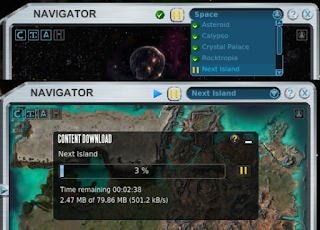

The map can also be used to download space stations, planets and space itself all in game. With the drop down menu at the top, select what map you want, then click the play/pause button next to it start/pause downloading. A window will pop up with a download bar.

When on a planets, you will only be able to see space and other planet  related maps in this drop down menu, for example Arkadia and Arkadia Underground, when in space you will see all the planets here.


The Message Center, Sticky notes and Contacts

In the top left corner of your HUD, you will find the message center button, and in the top right corner of your HUD is the contacts list button.

The message center will turn orange when there are unread messages with the number of unread messages showing up as a number above it, and what type of message it is under.
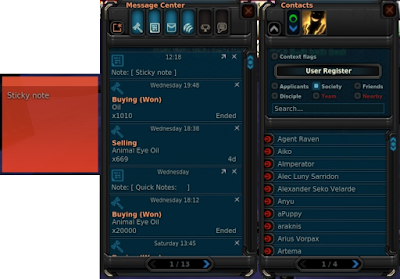

Along the top of the message center screen you will see 7 buttons, the little button on the left is the 'New' button, this is used to create a message or a sticky note. Message center messages are able to be sent to offline people and are kept in the message center until deleted, just like an in game email.

Sticky notes are a handy way of storing handing information in a note on screen, these notes are also stored in the message center until deleted. To remove from screen and save in the message center, click the arrow buttons in the top right of the stick notes corner. To change the sticky note colour or to delete the sticky notes, click the setting button in the top left corner of the note.

The 6 other buttons along the top of the message center are used to filter messages in the message center, from left to right these are what the buttons filter: "Auction Messages", "Sticky Notes", "Mail", "System Messages", "Global/Hall Of Fame", and "Tutorial Messages".

The contacts window will give you the ability to change your player profile and online visibility to other people. You can also view and send messages to friends, society members and disciples.

Setting And Other Options


There are a few more interface options in the setting, which is accessed via the "Esc" key. In the setting, and clicking HUD.

If you disable the loot window, instead of a window filling up with loot that you have to keep closing, you get a small temporary display of the loot in text with the trade terminal value next to it in the top left corner of the screen.

Here you will also be able to adjust the frequency of the global ticker, the higher the PED the less frequent, and how the ticker is displayed, always visible or invisible when not active.

A few other useful options here are the text size options, hide tutorials and align satnav with camera. Changing the satnav option will effect if the satnav is locked to north or lock to the the camera.

The current interface has only been recently released, and as continued update are applied more options may become available very soon in the future.


Default Control Setup

Default Moment Controls:
W - Move forward
S - Move backward/Towards camera
A - Move Left/Strafe Left
D - Move Right/Strafe Left

Space - Jump/Move Up In Vehicle
Ctrl - Move Down In Vehicle

Z - Rotate Left
C - Rotate Right

Q - Toggle Run/Walk
R - Auto Move

Left+Right Mouse - Walk in direction of camera.

Default Camera Controls:

Alt - Switch between aim and cursor mode
V - Camera Swap
V [Hold] - Activate Photo Camera

Middle Mouse [Hold] - Rotate camera, Release to Re-center

Mouse Wheel - Zoom in when in Ready Mode (to scope if available)
Left Shift - Toggle Zoom (when available)

Interaction Controls:
E or Right Mouse - Use Tool
F or Right Mouse - Auto Use Tool


ESC - Aborts Auto Use Tool, deselects target or closes window depending on context. Will also allow you to access the options, keyboard controls and exit Entropia.


Mouse Controls:


Aim Mode:
Left Mouse - Move to and interact, Select hunting target


Cursor Mode:
Left Mouse, 3rd person - Select Target or Interact/Use Tool on an Already Selected Target

Right Mouse, 3rd person - If object has a context menu, open context menu.
Right Mouse [Hold], 3rd person - Camera

Left Mouse
, 1st person - Use tool
Right Mouse, 1st person - Interact/Auto use tool on target

Other Mouse Controls:
Mouse 3 - Rotate Camera
Mouse 4 - Auto Run


Default Interface Controls:

X - Ready/Relax tool
G - Unequip Tool
TAB - Selects, Switches or !Deselects Target depending on Context

T - Teleport to nearest Revive Terminal

I - Inventory
K - Skills

P - Professions
J - Mission Log
B - Event List
H - Hall of Fame
M - Map of Current Planet/Territory

Y - Message Center
U - Contacts
O - Options


L - Edit Panel
N - Action Library


F1 to F9 - Select Key Map Set
F10 - Show Keyboard Map On Screen
F11 - Society Interface

F12 - Exit
(- or /) - Recall All Vehicles
(,) - Show Position in Chat Window
(.) - Show Current Entropia Time in Chat Window


Print Screen - Take a Screenshot, See Chat Window for Save Location


Chat:
Return - Start Chat and Send Message in Chat.

The up and down key while chat is in focus will scroll threw previous message sent.

Saturday, 16 February 2019

Guide: Edit Interface

(Since VU16, this guide has become out of date. Click here for an up to date guide!)

This guide will show you how flexible the overall interface in Entropia is, here you will learn about the chat interface, heads up display, waypoints, keyboard controls, contacts list and a few other display related options.

The Edit Panel

Normally only the radar, global display and chat windows can be moved, buttons can only be clicked/right clicked.

Pressing the "L" key on your keyboard will bring up the "Edit Panel". While the edit panel is open you will be able to move/add/remove most of the buttons that are on your screen simply by dragging the buttons, except the main buttons in the top right, these will be greyed out. "F1" through to "F9" lets you to switch between layouts, allowing you to set up multiple key bindings and on screen buttons.

The edit panel consists of two windows, the main window and the recycle bin window, this is where you can drag buttons you no longer want.

The first button on the main window will bring up the keyboard layout. This is where you can bind buttons to keyboard keys, allowing you to quickly access to things from your inventory or an action.


The second button will open the Action Library. This is where you can find buttons for actions in Entropia. A few examples of action buttons in Entropia are emotes, dances, vehicle controls, interface controls and interaction controls. One of the most useful actions in Entropia is the "Auto Use Tool" button, this button is not set to anything by default at the start.


The third button will open your Inventory. While the edit panel is open, you will be able to drag items from your inventory to your screen or keyboard. This includes weapons, armour parts, clothing, tools, vehicles and mind force chips.

The forth button on the edit panel simply resets everything back to default.

You are able to create a button to equip multiple clothes or multiple armour part in one button, this can be done by first equipping what you want, then right click>Equipment>Create Armour/Cloth Set. This also drastically speeds up the equipping time of these items.


The Chat Interface

The chat system is as simple as any other game, press enter, type message, press enter again to send. If you press up or down while the chat window is active, you will be able to scroll threw previous messages, this is handy for trading.

To change what chat channel you are talking in, on the left of where you type your message will be the channel name of the channel you are talking in, click that to change channel. The default will be [Local].

[Local] Non-trade, local area chat.
[Trade] Local area chat used for trading.
[Rookie] A global channel for advice.
[Society] Global channel, chat with society.
[#Trade] Any channel starting with a "#" is a custom chat channel created by a player. These channels are global chat channels.

You can also change your chat channels by clicking on the channel link in the chat window next to a players name chatting in that chat channel already.

If you right click the tabs at the top of the chat window, you can select what channels you want to display in what tab and what colour to display it in. You will also be able to create new tabs and remove unwanted tabs.

If you drag a tab off of the window, you can create multiple chat windows, to merge a window simply drag it to the window you want. The button next to the X top right, the arrows point down, merges all tabs in that window to the main window.

To send a private message to someone, simply click their name link in chat or right click their avatars and goto avatar, private chat.

There are also a number of chats commands which you can used, the most commonly used command is "/pos" or "/p" which displayed your position in the chat channel you are in, in the form of a nice clickable waypoint. Another useful command is "/join #channel", which is used to join a custom chat channel. To see a full up to date list of commands type "/help".

Map And Waypoints

To bring up the map press "M", here you will be able to see your location, known teleporter locations and known area location on the map. Missions with a waypoint that are currently active will show up here along with any custom waypoints added.

To add a custom waypoint to the map, right click the location, then click add waypoint.
Alternatively, you can also click on waypoint link from chat to add a waypoint someone sent.

If you right click a waypoint added on your map, you will be able to rename and copy that waypoint allowing you to send waypoints with custom names. Walking over a waypoint automatically removes it from your map.

To add more teleporter location, you must find and walk over the teleporters, once added you can freely move between teleporter.


The map can also be used to download space stations, planets and space itself all in game. With the drop down menu at the top, select what map you want, then click the play/pause button next to it start/pause downloading. A window will pop up with a download bar.

When on a planets, you will only be able to see space and other planet  related maps in this drop down menu, for example Arkadia and Arkadia Underground, when in space you will see all the planets here.


The Message Center, Sticky notes and Contacts

In the top left corner of your HUD, you will find the message center button, and in the top right corner of your HUD is the contacts list button.

The message center will turn orange when there are unread messages with the number of unread messages showing up as a number above it, and what type of message it is under.


Along the top of the message center screen you will see 7 buttons, the little button on the left is the 'New' button, this is used to create a message or a sticky note. Message center messages are able to be sent to offline people and are kept in the message center until deleted, just like an in game email.

Sticky notes are a handy way of storing handing information in a note on screen, these notes are also stored in the message center until deleted. To remove from screen and save in the message center, click the arrow buttons in the top right of the stick notes corner. To change the sticky note colour or to delete the sticky notes, click the setting button in the top left corner of the note.

The 6 other buttons along the top of the message center are used to filter messages in the message center, from left to right these are what the buttons filter: "Auction Messages", "Sticky Notes", "Mail", "System Messages", "Global/Hall Of Fame", and "Tutorial Messages".

The contacts window will give you the ability to change your player profile and online visibility to other people. You can also view and send messages to friends, society members and disciples.

Setting And Other Options


There are a few more interface options in the setting, which is accessed via the "Esc" key. In the setting, and clicking HUD.

If you disable the loot window, instead of a window filling up with loot that you have to keep closing, you get a small temporary display of the loot in text with the trade terminal value next to it in the top left corner of the screen.

Here you will also be able to adjust the frequency of the global ticker, the higher the PED the less frequent, and how the ticker is displayed, always visible or invisible when not active.

A few other useful options here are the text size options, hide tutorials and align satnav with camera. Changing the satnav option will effect if the satnav is locked to north or lock to the the camera.